
Linear Integration
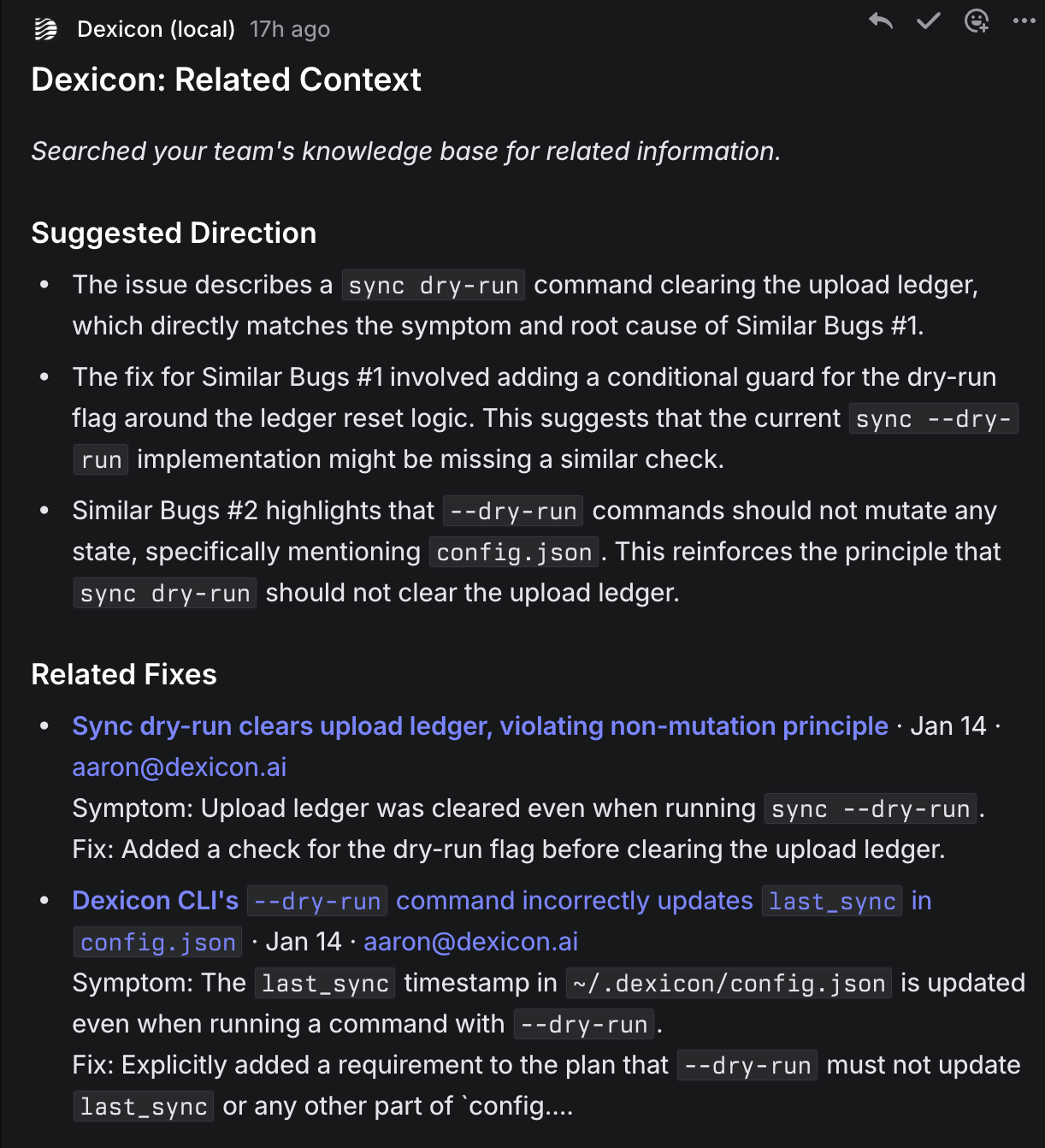
Dexicon integrates with Linear to automatically surface relevant context when bug issues are created. When a team member creates or labels an issue as a bug, Dexicon searches your organization's knowledge base and coding sessions to find related information and posts it as a comment on the issue.
Connect Linear at app.dexicon.ai/settings/connectors.
How It Works
- Connect your Linear workspace — Authorize Dexicon via OAuth to access your Linear workspace
- Configure your triggers — Choose which bug label(s) trigger the auto-search (default: "Bug")
- Create a bug issue — When an issue is created or labeled with your configured bug label, Dexicon automatically searches for related context
- Review the comment — Dexicon posts a comment with links to similar bugs and related coding sessions
Features
Auto-Search for Related Context
When a bug issue is created, Dexicon uses semantic search to find:
- Similar bugs from your knowledge base with symptoms, root causes, and fixes
- Related coding sessions where team members worked on similar problems
Results are posted as a comment on the Linear issue with direct links to Dexicon for deeper exploration.
AI-Generated Summary
Each comment includes a "Suggested Direction" based on the related context. The AI analyzes the similar bugs and sessions to provide actionable guidance for investigating the issue.
Configurable Scope
Fine-tune what Dexicon monitors and searches:
- Bug labels — Specify which label(s) identify bug issues (e.g., "Bug", "Defect", "Issue")
- Monitored teams — Limit monitoring to specific Linear teams
- Monitored projects — Limit monitoring to specific Linear projects
- Dexicon project scope — Limit search results to specific codebases
Setup
Requirements
- Admin role in your Dexicon organization
- Admin access to your Linear workspace
Connect Linear
- Go to Settings → Connectors
- Click Connect Linear
- Authorize Dexicon to access your Linear workspace
- Configure your bug label and monitoring preferences
Configure Webhook (Automatic)
When you connect Linear, Dexicon automatically sets up the webhook to receive issue events. No manual configuration is required.
Troubleshooting
Comments Not Appearing
- Verify the issue has a configured bug label
- Check that the team/project isn't excluded by your monitoring filters
- Review recent webhook events in Settings → Connectors → Linear
Reconnection Required
If your Linear connection shows a "Reconnect" prompt, the OAuth token has expired or been revoked. Click Reconnect to re-authorize Dexicon.
Disconnect Linear
To disconnect Linear:
- Go to Settings → Connectors
- Click on the Linear integration
- Click Disconnect
This revokes Dexicon's access to your Linear workspace and stops all webhook processing.